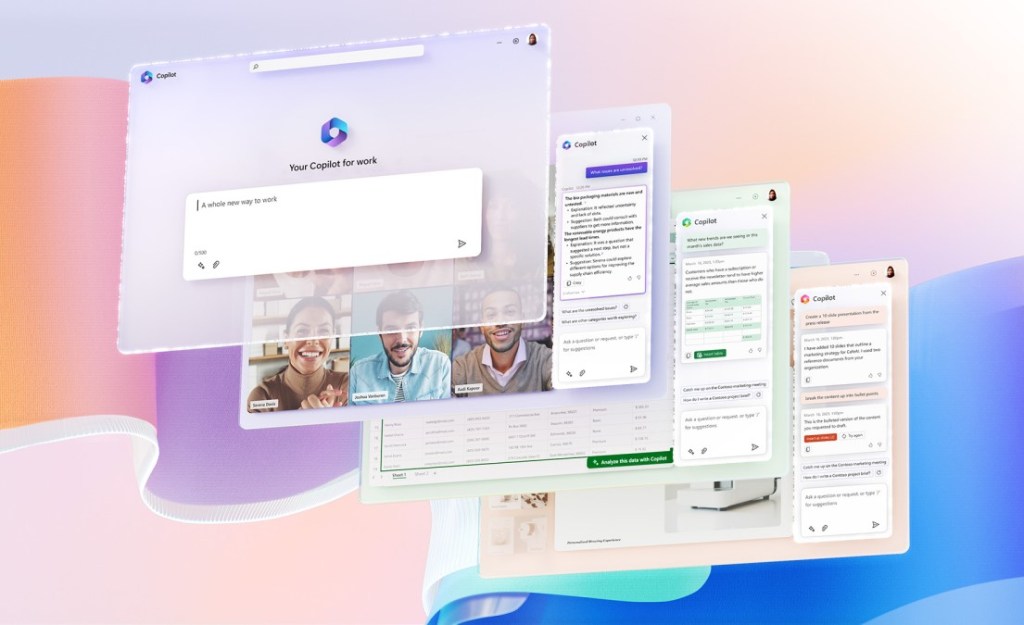
Microsoft 365 Copilot is a new AI-powered assistant that integrates with all the Microsoft 365 apps (Word, Excel, PowerPoint, Outlook, Teams, etc.) and uses natural language as the ultimate productivity tool. It was announced on March 16, 2023 by Satya Nadella, the CEO of Microsoft. In this blog post, I will share some of the benefits and features of Microsoft 365 Copilot and how it can help you unleash your creativity, unlock your productivity and uplevel your skills.
What is Microsoft 365 Copilot?
Microsoft 365 Copilot is an assistant that works alongside you, embedded in the Microsoft 365 apps you use every day. It combines the power of large language models (LLMs) with your data in the Microsoft Graph—your calendar, emails, chats, documents, meetings, and more—and the Microsoft 365 apps to turn your words into the most powerful productivity tool on the planet.
With Microsoft 365 Copilot, you can use natural language prompts to do things you’ve never been able to do before. For example, you can ask Copilot to:
- Draft a two-page project proposal based on the data from a document and a spreadsheet.
- Create a beautiful presentation with relevant content from a document you made last week or last year.
- Generate a status update for your team based on the morning’s meetings, emails and chat threads.
- Summarize a long email thread or write suggested replies in Outlook.
- Synthesize in real time the main points and actions to take from a Teams meeting.
- Automate tasks and create chatbots in Power Platform.
Microsoft 365 Copilot also works with Business Chat, a new experience that uses your data and apps to surface useful information and insights for you. Business Chat is accessible from Microsoft365.com, Bing (by signing in with a Microsoft business account) or Teams.
Why use Microsoft 365 Copilot?
Microsoft 365 Copilot can transform your work in three ways:
- Unleash creativity. With Copilot in Word, you can jump-start the creative process so you never start with a blank slate again. Copilot gives you a first draft to edit and iterate on — saving hours in writing, sourcing, and editing time. You can also get suggested tones—from professional to passionate and casual to thankful—to help you strike the right note. Copilot can also help you improve your writing with suggestions that strengthen your arguments or smooth inconsistencies.
- Unlock productivity. With Copilot in Excel, you can create professional-quality data visualizations in seconds. Copilot can also help you analyze your data with natural language queries and formulas. You can also use Copilot to import data from other sources or export data to other apps. With Copilot in Outlook, you can save time by summarizing long email threads or writing suggested replies. You can also use Copilot to schedule meetings, set reminders, or send attachments with natural language commands.
- Uplevel skills. With Copilot in PowerPoint, you can create beautiful presentations with a simple prompt. Copilot can also help you design your slides, add animations, or insert media. You can also use Copilot to rehearse your presentation, get feedback, or translate your slides into another language. With Copilot in Teams, you can collaborate more effectively with your colleagues. Copilot can help you synthesize the main points and actions to take from a meeting, share files or chat messages, or create polls or surveys.
Examples of Microsoft 365 Copilot
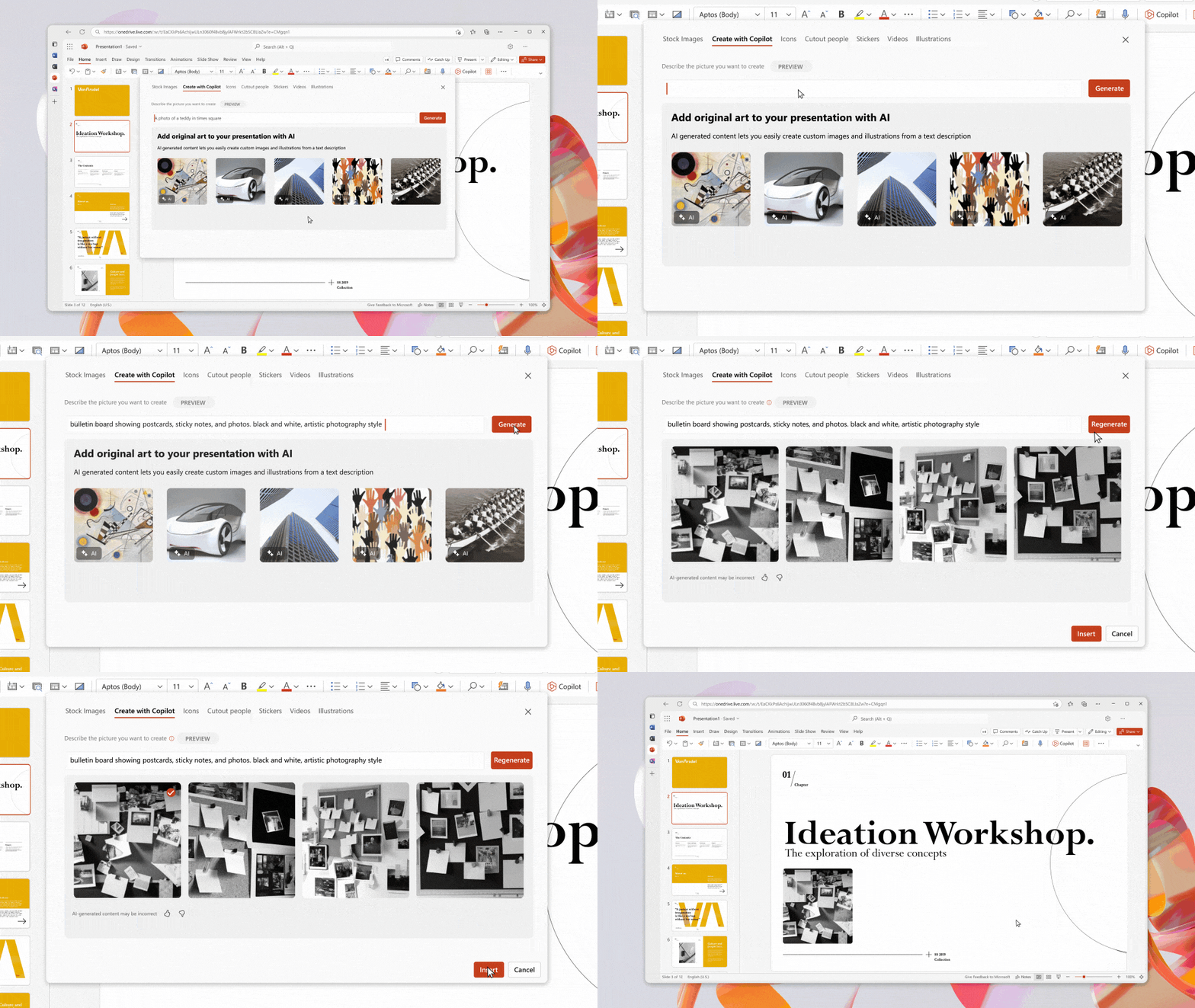

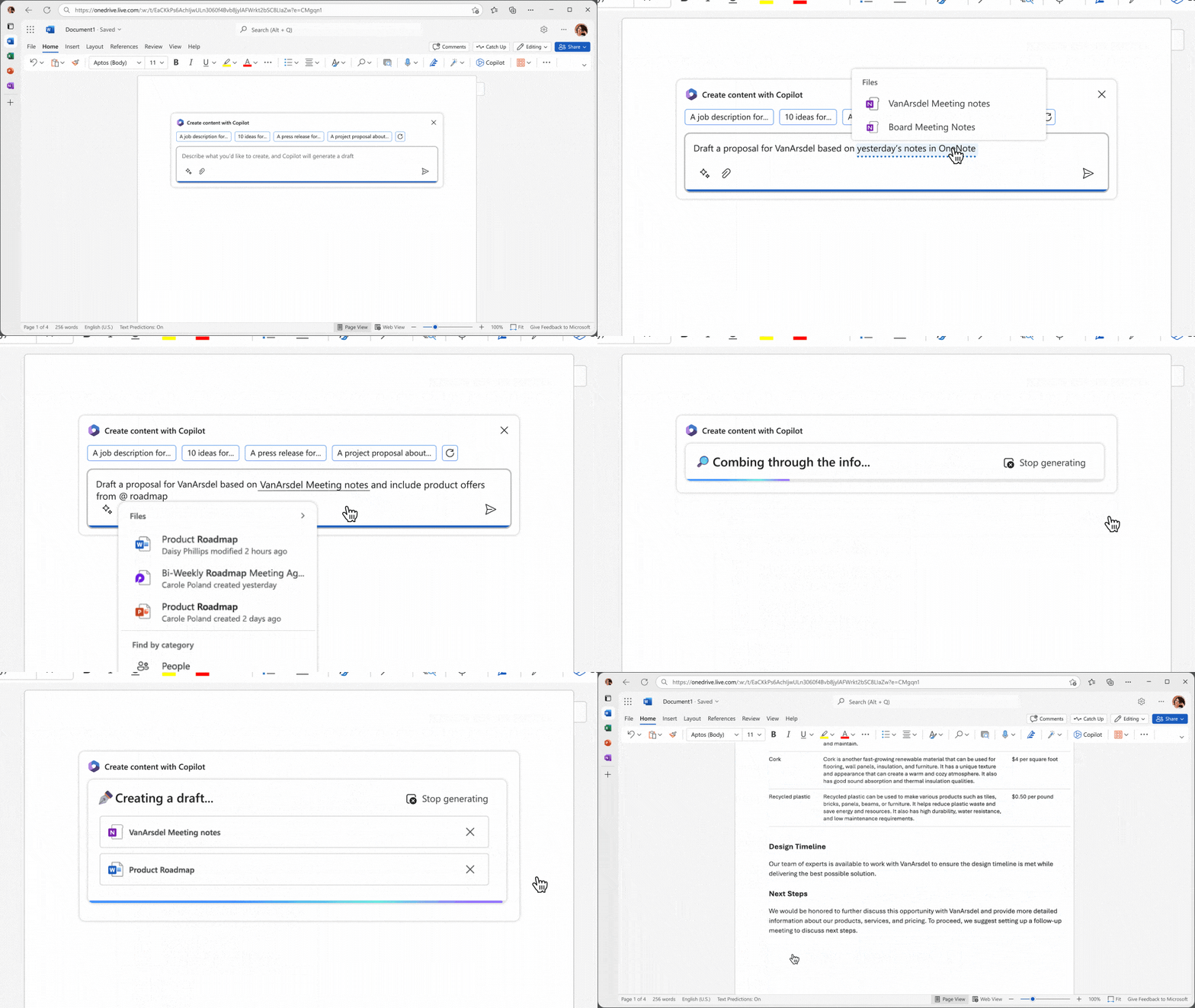
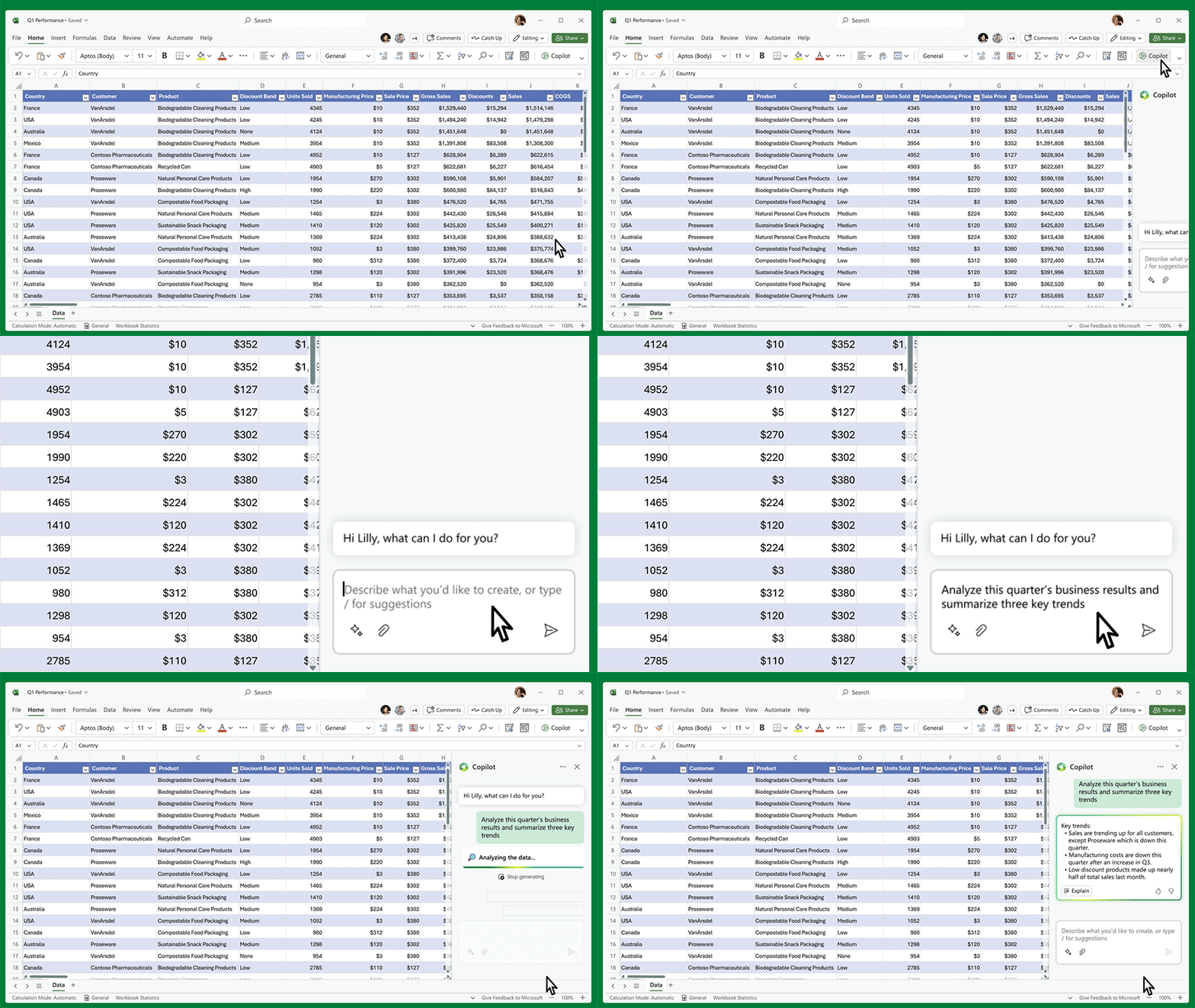
How to get started with Microsoft 365 Copilot?
Microsoft 365 Copilot is currently available for early access for select customers who have a Microsoft 365 E3 or E5 subscription. You can sign up for the early access program here: https://www.microsoft.com/en-us/microsoft-365/copilot/early-access
To use Microsoft 365 Copilot, you need to have an internet connection and sign in with your Microsoft account. You can access Copilot from any of the Microsoft 365 apps by clicking on the Copilot icon or typing “Copilot” in the command box. You can also access Business Chat from Microsoft365.com, Bing (by signing in with a Microsoft business account) or Teams.
To give a natural language prompt to Copilot, you can type it in the Copilot dialog box or say it aloud if you have a microphone enabled. You can also use voice commands like “Hey Copilot” or “OK Copilot” to activate it.
Copilot will generate a response based on your prompt and show it to you on the screen. You can then choose to keep it, modify it, or discard it. You can also give feedback to Copilot by clicking on the thumbs up or thumbs down icons.
Microsoft 365 Copilot in education: opportunity or threat?
Microsoft 365 Copilot is not only a tool for professionals, it can also be used in the field of education. Indeed, Microsoft offers paid licenses for schools and universities that want to benefit from this intelligent assistant.
But what are the advantages and disadvantages of Microsoft 365 Copilot for students and teachers? Should we subscribe or not?
On one hand, Microsoft 365 Copilot can be a great educational tool for students. It can help them write reports, essays, presentations or dissertations with more ease and creativity. It can also accompany them in their learning process by providing explanations, examples, exercises or quizzes tailored to their needs. It can also allow them to access information and knowledge from reliable and diverse sources.
On the other hand, Microsoft 365 Copilot can also pose ethical and pedagogical problems. It can encourage students to intellectual laziness by providing them ready-made answers without having to think for themselves. It can also harm their autonomy and critical thinking by imposing a vision or a style that is not theirs. It can also create situations of plagiarism or cheating by allowing them to copy or modify content generated by the assistant without citing it.
Facing these challenges, there is no simple or universal answer. Each institution, each teacher, each student must make their own choice according to their objectives, values and needs. Some may see it as an opportunity to seize others as a threat to avoid.
From my point of view we have to use the tools that are at our disposal but with discernment and responsibility. Microsoft 365 Copilot can be a valuable ally for students if it is used as a support and not as a substitute for their personal work. We also need to review the methods of evaluating students so as not to penalize or advantage them depending on whether they use the assistant or not. We must finally raise their awareness of the ethical and legal issues related to the use of AI so that they respect copyright and ethical rules.
We must prepare students for their future and these tools will be part of their daily lives. But we must also teach them how to use them intelligently and consciously.
Conclusion
Microsoft 365 Copilot is a new AI-powered assistant that can transform your work with natural language. It can help you unleash your creativity, unlock your productivity and uplevel your skills by working alongside you in the Microsoft 365 apps you use every day. It can also work with Business Chat to surface useful information and insights for you based on your data and apps.
 Sylvain Jacquemard — CIO, Copilot M365 & Microsoft 365 Expert
Leave a comment