Before getting inside of this article, I will explain why I decided to write it. Last year I saw Microsoft Loop at the M365Conference. I was impressed by the potential of this new application, and at the same time, I was thinking, “Okay, that’s nice, but I can do almost the same with OneNote,” so I chose to wait a little bit to use it. One year later, this app has evolved, and I think it’s mature enough to be used by anyone (if you have the license for it!). So here we go! Let’s dive in with this short article to present this tool, and I hope to make you curious enough to try it and maybe adopt it.
What is Microsoft Loop?
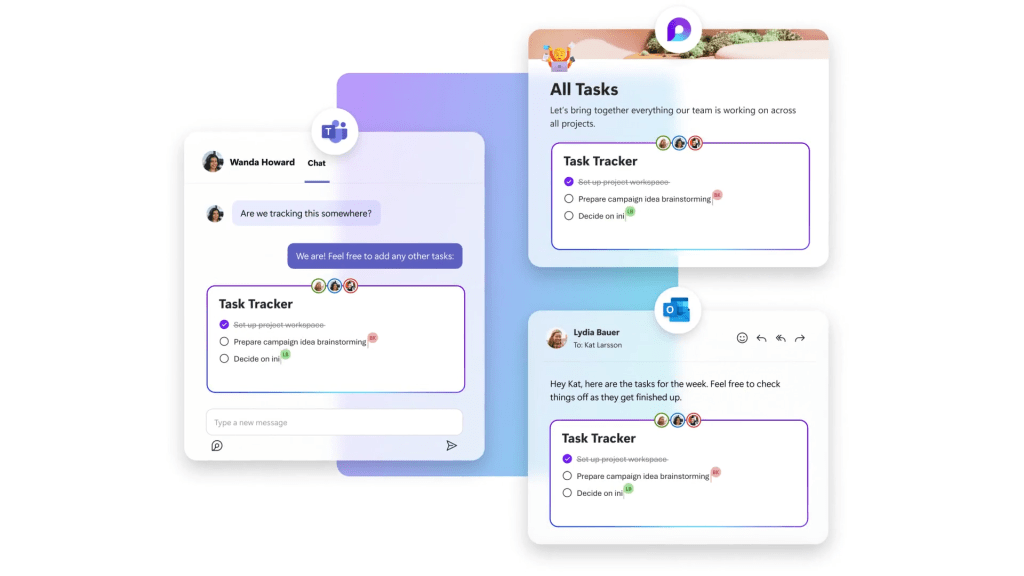
Microsoft Loop is an app that lets you create and share dynamic documents with your team. Loop combines the best features of Microsoft 365 apps, such as Word, Excel, PowerPoint, and Teams, into a single platform that allows you to work together in real time. With Loop, you can:
- Create rich and interactive documents with text, images, videos, tables, charts, and more.
- Embed live components from other apps, such as lists, tasks, polls, calendars, and forms.
- Collaborate with your team members on the same document, with chat, comments, and co-authoring.
- Access your documents from any device, online or offline, and sync them across your Microsoft 365 account.
- Integrate your documents with other Microsoft 365 apps, such as Outlook, SharePoint, and OneDrive.
How is Loop different from OneNote?
OneNote is a popular app for taking notes, organizing information, and managing projects. Loop is similar to OneNote in some ways, but it also offers some unique advantages. Here are some of the main differences between Loop and OneNote:
- Loop is designed for collaboration, while OneNote is more focused on personal productivity. Loop lets you work with your team on the same document, with chat, comments, and co-authoring. OneNote lets you share your notebooks with others, but it does not support real-time collaboration.
- Loop is more dynamic and interactive than OneNote. Loop lets you embed live components from other apps, such as lists, tasks, polls, calendars, and forms. These components update automatically and can be edited by anyone who has access to the document. OneNote lets you insert static images, files, and links from other apps, but they do not update or interact with the document.
- Loop is more integrated with Microsoft 365 than OneNote. Loop lets you access your documents from any device, online or offline, and sync them across your Microsoft 365 account. Loop also lets you integrate your documents with other Microsoft 365 apps, such as Outlook, SharePoint, and OneDrive. OneNote lets you sync your notebooks across your devices and store them on OneDrive, but it does not integrate with other Microsoft 365 apps as seamlessly as Loop.
What are some use cases of Loop?
Loop can be used for a variety of purposes, such as:
- Creating and presenting reports, proposals, and newsletters with text, images, videos, tables, and charts.
- Planning and managing projects, events, and campaigns with lists, tasks, polls, calendars, and forms.
- Brainstorming and ideating with your team with chat, comments, and co-authoring.
- Learning and teaching with interactive quizzes, surveys, and feedback.
- Documenting and sharing best practices, guidelines, and procedures with your team or organization.
How to get started with Loop?
Loop is currently available for Microsoft 365 users. To get started with Loop, you need to:
- Download the Loop app for Windows, Mac, iOS, or Android.
- Sign in with your Microsoft 365 account and create or join a Loop workspace.
- Create a new Loop document or open an existing one from your workspace.
- Add and edit content, components, and collaborators to your document.
- Share and sync your document with other Microsoft 365 apps.
Copilot in Loop
The information about using Copilot in Loop is highly relevant in today’s technological landscape. Copilot has been a widely discussed topic in various forums and platforms, and its integration into Loop has sparked significant interest. The possibility of leveraging Copilot within Loop opens up new opportunities for enhancing productivity and streamlining workflows.
If you are considering utilizing Copilot in Loop, it’s essential to stay informed about all the aspects related to this integration. The article provided offers in-depth insights into the functionalities and benefits of utilizing Copilot within the Loop platform. By delving into this resource, you can gain a comprehensive understanding of how Copilot can be effectively utilized to optimize your workflows and enhance your overall efficiency.
The provided link directs you to an article that covers everything you need to know about integrating Copilot into Loop. Exploring this resource can provide you with valuable knowledge and insights that can help you make informed decisions regarding the utilization of this powerful tool within Loop.
Link : https://copilot.cloud.microsoft/en-us/copilot-loop
Conclusion
Microsoft Loop is a new app that lets you create and share dynamic documents with your team. Loop combines the best features of Microsoft 365 apps, such as Word, Excel, PowerPoint, and Teams, into a single platform that allows you to work together in real time. Loop is different from OneNote in that it is more collaborative, dynamic, and integrated. Loop can be used for a variety of purposes, such as creating and presenting reports, planning and managing projects, brainstorming and ideating with your team, learning and teaching with interactive quizzes, and documenting and sharing best practices. Loop is a new way to collaborate that will transform how you work with your team.
Ressources :
https://www.microsoft.com/en-us/microsoft-loop
#MicrosoftLoop #CollaborationTool #Microsoft365 #DigitalWorkplace
 The Technology, The CIO Life and Me
Leave a comment